
ChatGTP Signup Guide
In the boundless ocean of digital services, where data moves at the speed of light and human interaction is mediated by layers of code, lies a unique island of conversational AI — ChatGTP. It’s a realm that promises engaging dialogue, rich insights, and even a dash of humor. However, before one can embark on this delightful journey, there is an inevitable rite of passage: The Sign-Up Process.
While this step is often seen as trivial by tech-savvy explorers, it’s crucial to remember that not all who wander the web are as well-versed in the intricacies of online registration. There’s an array of options and steps, from email verifications to third-party account linkings, each presenting its own set of challenges and requirements.
If you’ve found yourself standing at this digital threshold, unsure how to proceed, fear not. What follows is a comprehensive, step-by-step guide that aims to navigate you through the winding paths of this initial stage. With a meticulous approach, this guide will cover each method available, ensuring that you can reach the promised land of conversational AI without undue struggle.
ChatGTP homepage layout
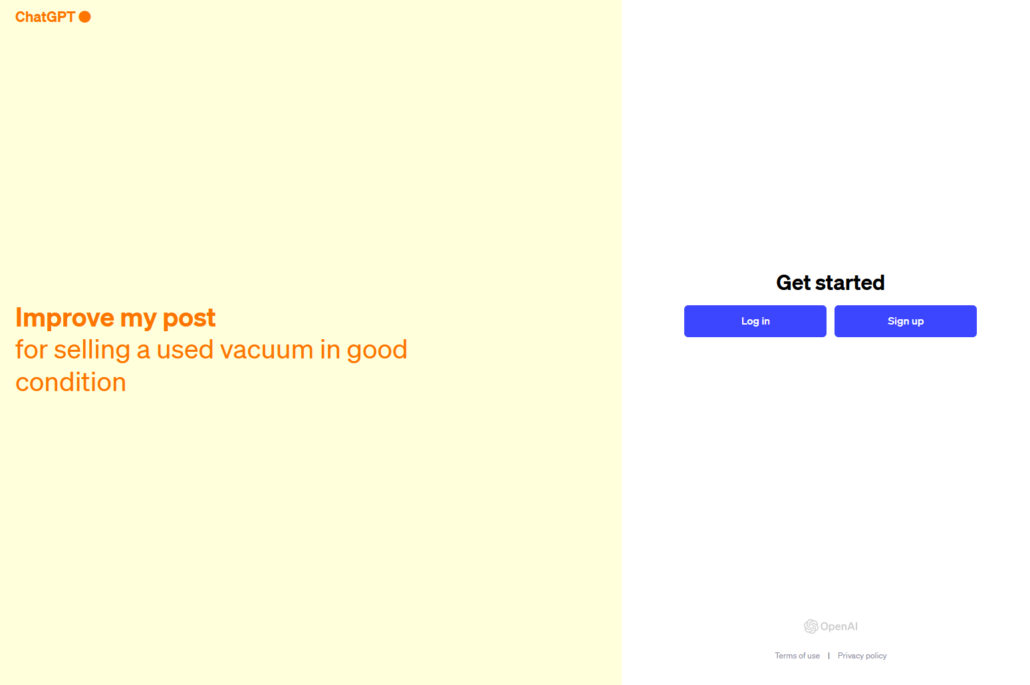
Initial Steps:
- URL: Open your web browser and navigate to https://chat.openai.com by typing it into the address bar and pressing Enter.
- Action Buttons: Once the webpage loads, focus your attention on the top-right corner, where you’ll see two buttons: “Login” and “Sign Up”.
- Sign Up: Click on the “Sign Up” button.
- Signup Method: On the subsequent page, choose the “Continue with Email” option.
- Email and Verification: Input your email address and follow the verification instructions sent to the provided email.
- Finalization: After successful verification, follow the prompts to set your password and complete the signup process.
- Sign Up: Click on the “Sign Up” button.
- Signup Method: Select the “Continue with Microsoft Account” option.
- Microsoft Authentication: Follow the prompts to sign in using your Microsoft account.
- Finalization: Upon successful authentication, you’ll be redirected to the ChatGTP interface.
- Sign Up: Click on the “Sign Up” button.
- Signup Method: Select the “Continue with Google” option.
- Google Authentication: Follow the prompts to sign in using your Google account.
- Additional Authentication: You may be asked to provide your birthdate and a phone number for further authentication. Input these details as required.
- Phone Verification: If a phone number was entered, an SMS code will be sent. Enter this code for verification.
- Finalization: After successful verification, you’ll be redirected to the ChatGTP interface.
- Sign Up: Click on the “Sign Up” button.
- Signup Method: Select the “Continue with Apple” option.
- Apple Authentication: Follow the prompts to sign in using your Apple account.
- Finalization: Upon successful authentication, you’ll be redirected to the ChatGTP interface.
How to Install the ChatGPT App:
- Open the App Store on your iOS device.
- In the search bar, type “openai chatgpt official” to locate the official app.
- Alternatively, directly access through this link: https://apps.apple.com/app/openai-chatgpt/id6448311069
- Press “Get” to install the app.
After installation, open the app, follow the setup instructions, and start using ChatGPT!
- Open the Google Play Store on your device.
- In the search bar, type “openai chatgpt official” to locate the official app.
- Alternatively, simply click on this direct link: https://play.google.com/store/apps/details?id=com.openai.chatgpt
- Click on “Install” to download and install the app on your device.
After installation, open the app, follow the setup instructions, and start using ChatGPT!